Thank you, Firebug. You made the web amazing for all!
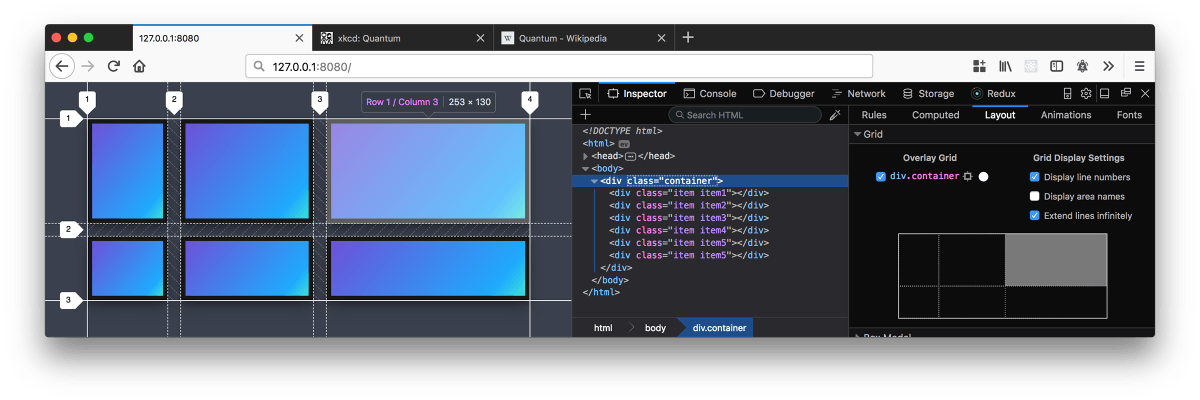
The story of Firefox and Firebug are synonymous with the rise of the web. We fought the good fight and changed how developers inspect HTML and debug JS in the browser. Firebug ushered the Web 2.0 era. Today, the work pioneered by the Firebug community through the last 12 years lives on in Firefox Developer Tools. Switch to the latest version of Firefox and see the very latest devtools updates.

You made the dream come true. We salute you!
There are too many contributors to count but here are the names that come to mind. Thank you for you work and passion for Firebug. It was not possible without you.
| All Members | |
|---|---|
| Jan 'Honza' Odvarko | Christoph Dorn |
| John J. Barton | Steven Roussey |
| Joe Hewitt | Sebastian Zartner |
| Steve Souders | Pedro Simonetti Garcia |
| Douglas Crockford | Harutyun Amirjanyan |
| Dion Almaer | Stampolidis Anastasios |
| Kevin Sawicky | Joe Walker |
| Rob Campbell | Farshid Beheshti |
| Azer Koçulu | Simon Lindholm |
| Curtis Bartley | Florent Fayolle |
| Hans Hillen | Jakob Kaltenbrunner |
| Kevin Decker | Belakhdar Abdeldjalil |
| Mike Collins | Alistair Laing |
| Mike Ratcliffe | |
| Austin Andrews | |
| Hernan Rodríguez Colmeiro | |
| Translators | |
|---|---|
| Leszek(teo)Życzkowski (pl-PL) | Dark Preacher (ru-RU) |
| markh (nl-NL) | Tiago Oliveira (pt-BR) |
| peter3 (sv-SE) | Diego de Carvalho Zimmermann (pt-BR) |
| AlleyKat (da-DK) | Alexandre Rapaki (pt-BR) |
| Hector Zhao, lovelywcm (zh-CN) | Juan Botías (es-ES) |
| Lukáš "lordfrikk" Kucharczyk (cs-CZ) | Álvaro G. Vicario (es-ES) |
| Michal Kec (cs-CZ) | Andriy Zhouck (uk-UA) |
| ReinekeFux (de-DE) | Hisateru Tanaka (ja-JP) |
| Benedikt Langens (de-DE) | Mohsen Shadroo (fa-IR) |
| Sebastian Zartner (de-DE) | Eduard Babayan (hy-AM) |
| l0stintranslation (it-IT) | Eduard Babayan (hy-AM) |
| gonzalopirobutirro (it-IT) | Tomaž Mačus (sl-SI) |
| alexxed (ro-RO) | Stoyan Stefanov (bg) |
| Nicolas Martin (fr-FR) | Alexander Shopov (bg) |
| Franck Marcia (fr-FR) | Kristján Bjarni Guðmundsson (is-IS) |
| gLes (hu-HU) | NGUYỄN Mạnh Hùng (vi-VN) |
| Xavi Ivars - Softcatalà (ca) | Bwah (hr-HR) |
| gezmen (tr-TR) | Sonickydon (el-GR) |
| eternoendless (es-AR) | David Gonzáles (es) |

Switch to the latest Firefox Developer Tools
Try the new Firefox Quantum developer tools in Developer Edition or update to the latest release version. Inside you will find the latest tools like the first CSS Grid inspector and the JavaScript debugger.